



You can turn an MP3 or WAV into a complete AI music video in under 30 minutes, with no editing skills. You need three things: an audio file you own the rights to, one image, and optionally a text prompt describing the look.
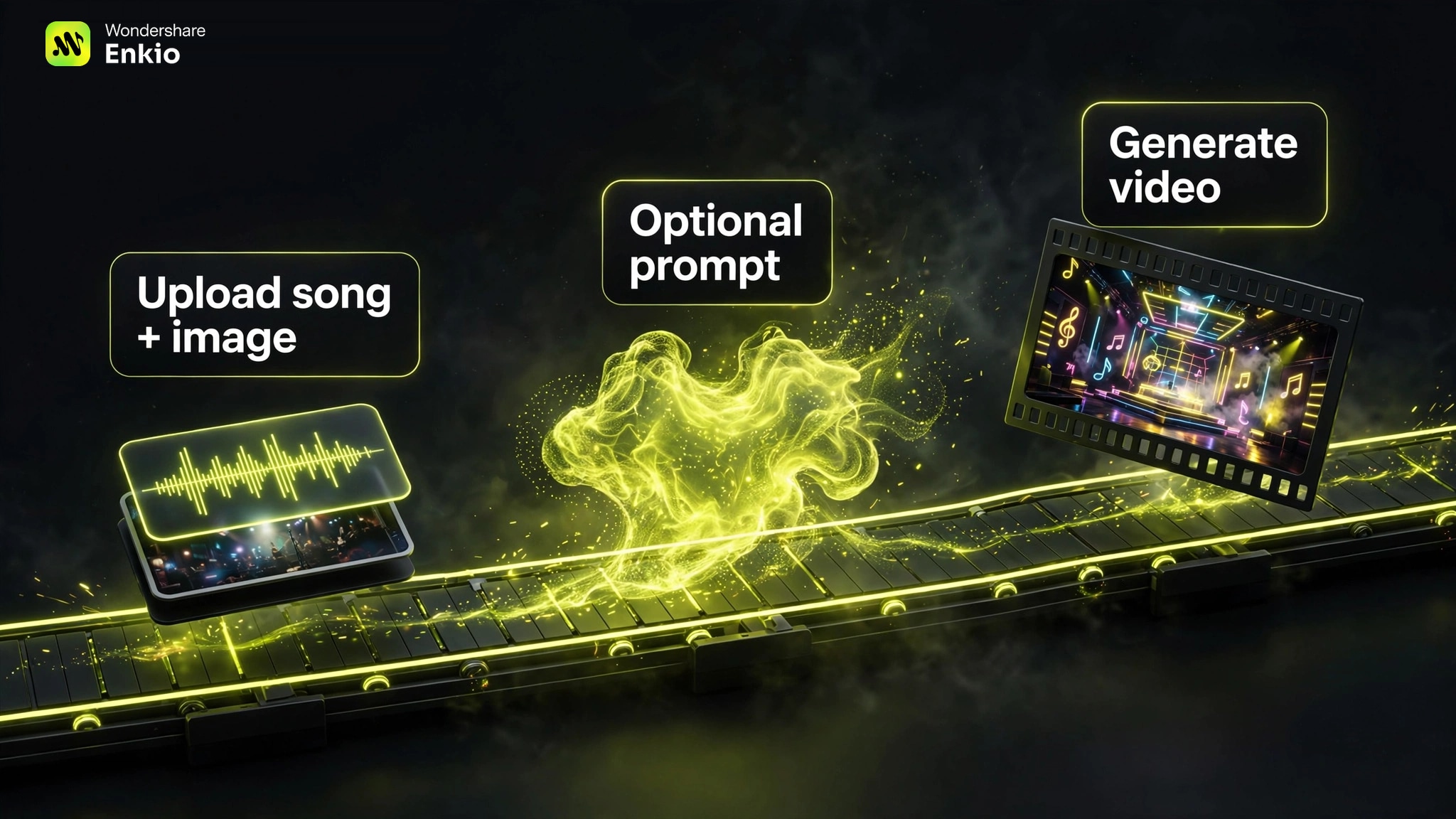
The steps below follow Enkio's workflow (upload song + image → optional prompt → generate) — based on published docs and independent reviews.
Do You Need a Full Music Video or Just a Visualizer?
Pick the format before you pick the tool — a full music video and a visualizer solve different jobs, and most "which tool?" confusion starts here.
| Full music video | Visualizer | Lyric video | |
|---|---|---|---|
| Best for | Releases, storytelling, YouTube premieres | Livestreams, background loops | Sing-alongs, quick social posts |
| What you get | Scene-based video synced to the song | Abstract motion reacting to the audio | Lyrics on screen over motion backgrounds |
| Typical effort | 10–30 minutes in a generator | A few minutes | A few minutes |
| You need | Song + image (+ optional prompt) | Just the audio file | Song + lyrics text |
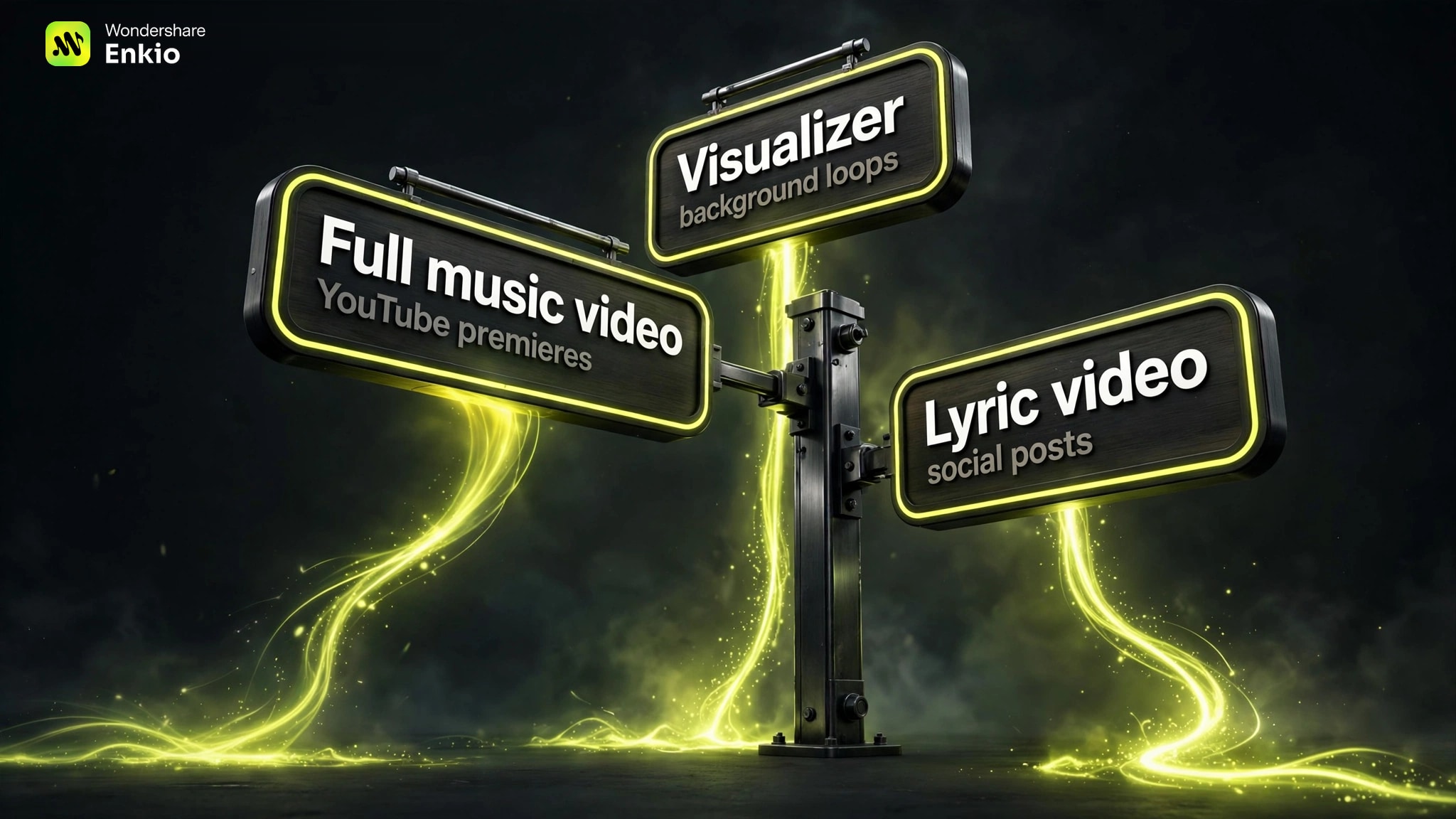
If you want the full-video column — directed scenes and a consistent look rather than abstract motion — Enkio's template-led flow is built for exactly that job. The rest of this guide assumes that's what you're making.
What You Need Before You Start & Setps
Three ingredients, five minutes of prep. First, an audio file you own or have the rights to use — your own song, a licensed track, or one you generate yourself. Do not upload someone else's commercial release; you are responsible for the rights to any audio you process. Second, one image: upload your own photo or artwork, or generate the visual inside the tool. Third, optionally, a text prompt describing the visual direction — you can skip it and start from a template instead.
No finished track yet? AI Music Generator turns text and your own lyrics into vocal tracks.
Step 1: Prepare Your Audio
The generator is only as good as the file you feed it. Start with a clean export — MP3 or WAV are the safest bets across tools — and trim it to the section you actually want in the video. A full three-minute song works, but so does a 15-second hook for a teaser cut.
| Format | Typical support | Notes |
|---|---|---|
| MP3 | Widely supported | Small files; the safe default |
| WAV | Widely supported | Larger files, higher quality |
| FLAC / AIFF | Varies by tool | Lossless but heavy; check the uploader first |
As a rule of thumb, a three-minute MP3 at 128 kbps is about 3 MB — comfortably inside typical upload caps. The upload step lets you trim the audio range; check the upload dialog for current file-size limits, since caps change.
Step 2: Pick a Template or Set the Style
You don't need a prompt to start. Enkio opens with templates as the visual starting point — browse the trending categories, pick one whose mood matches your track, and the generator takes it from there.
If you'd rather art-direct from scratch, skip the template and describe the style yourself in the next step. Either way, decide the visual lane now: cinematic, retro film, neon night, minimalist — one lane per video keeps it coherent.
Step 3: Write the Prompt (Optional)
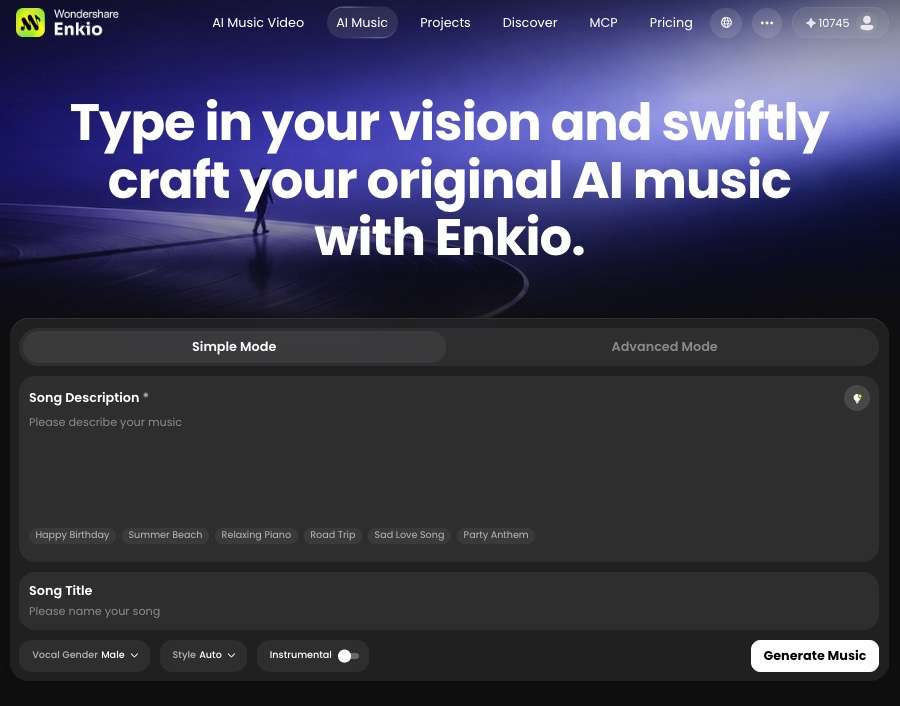
The prompt is optional, but specific creative intent produces a more focused result. The prompt box accepts up to 2,000 characters — but one vivid sentence beats a vague paragraph. Three examples that work:
- "Neon-lit city rooftop at night, slow push-in, singer silhouette against rain, cinematic"
- "Warm 70s film grain, desert highway at golden hour, vintage car, sweeping aerial shots"
- "Dark stage, single spotlight, close-ups of hands on guitar strings, film-noir mood"
Name the setting, the light, the camera move, and the mood — in that order. Skip it entirely if the template already nails the look.
Step 4: Choose Resolution and Aspect Ratio
Decide where the video will live before you generate — reframing after export costs quality. Enkio outputs 720p or 1080p (per its official FAQ) across five aspect ratios: pick 9:16 for TikTok, Reels, and Shorts; 16:9 for YouTube; 1:1 for feed posts; 3:4 and 4:3 cover the remaining placements.
Match the ratio to the platform on the first render. A 16:9 video cropped to vertical loses half its frame — and with it, whatever the prompt put at the edges.
Step 5: Generate and Refine
Start the generation and let it run — then review what comes back like a director, not a spectator. Check the scenes against your song's structure: does the energy lift where the chorus hits? If a shot misses, adjust the prompt or swap the template and regenerate that section rather than settling. Enkio's flow continues after the first render — you can track progress, review the footage, and keep editing toward the final cut.
Tips for Better Results
Small choices separate a decent video from a good one.
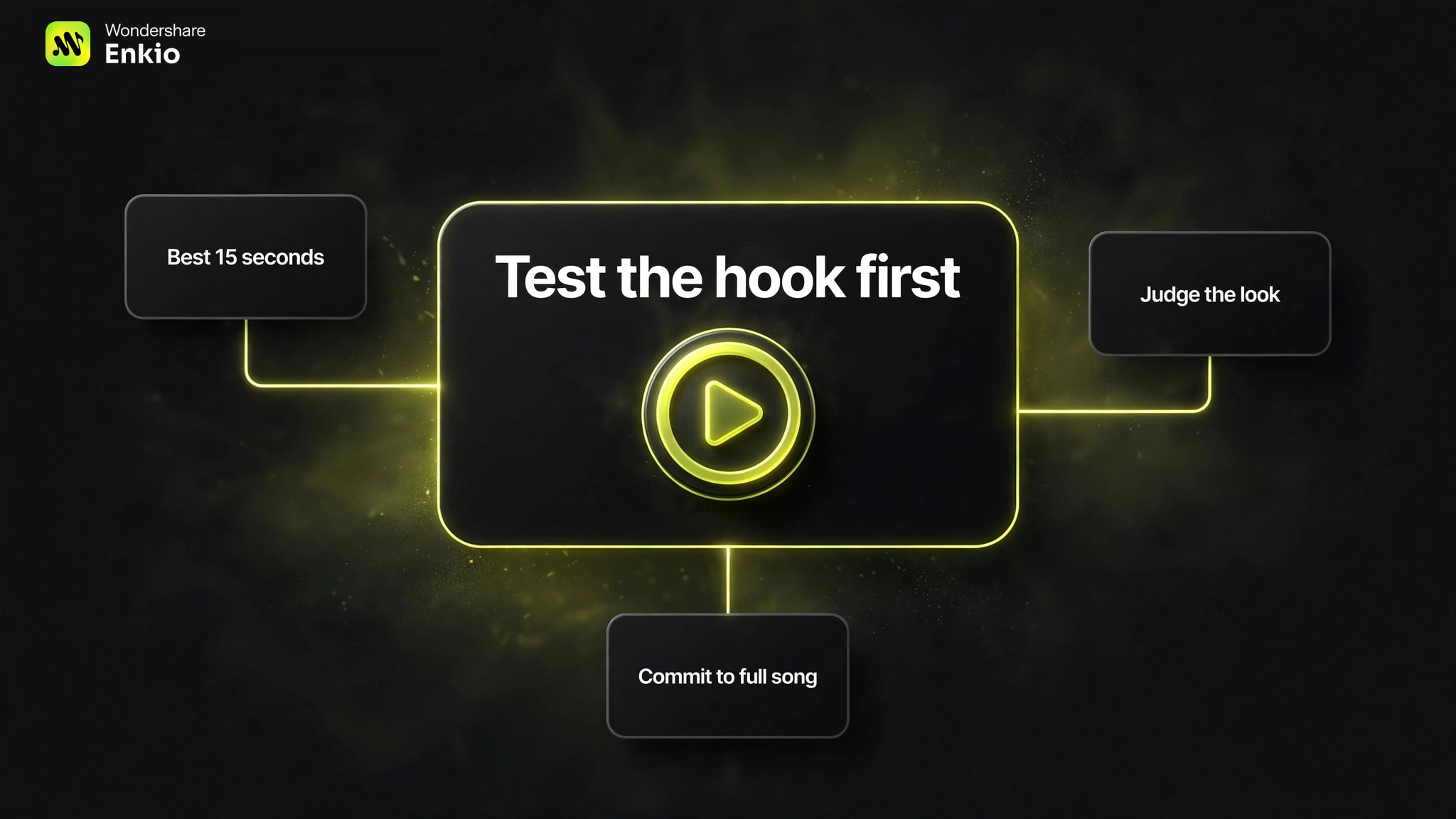
First, test the hook before spending credits on the full song — generate the best 15 seconds, judge the look, then commit to the whole track.
Second, the number-one complaint in creator communities is manually aligning scenes to the verse-chorus structure, so favor a tool with scene planning over one-clip-at-a-time generation.
Third, lip-sync close-ups are the most common real-world use case on social feeds — front-load a performance shot rather than burying it. Fourth, free tiers are fine for testing the look, but releases need a paid plan: free outputs commonly carry watermarks and non-commercial terms.
Compare plans before you commit.
Monthly credits, rollover rules, and export limits side by side.
Frequently asked questions
Is an AI music video the same as a visualizer?
No. A visualizer is abstract motion that reacts to audio — bars, waves, particles. An AI music video has directed scenes, characters, and a visual narrative synced to the song. They serve different jobs: background loops versus actual releases.
Can I make a video from just an MP3 file?
Yes — the MP3 is the only required input on the audio side. You'll still need at least one image for the visuals, unless the tool generates them from your prompt. The steps above assume an MP3 plus one uploaded or generated image.
What audio formats are supported?
MP3 and WAV are accepted almost everywhere. FLAC and AIFF support varies by tool — check the uploader before converting your library. Whatever the format, a clean, undistorted export matters more than the container.
Do I need editing skills?
No. The generator handles timing, cuts, and motion; your job is direction — picking the template, writing the prompt, choosing the aspect ratio. If you can describe the look you want in a sentence, you have the only skill this workflow requires.
Can I use it commercially, and will there be a watermark?
It depends on the plan. Free tiers commonly add watermarks and restrict output to non-commercial use — fine for testing, not for releases. Paid plans typically remove the watermark and grant broader usage rights, but confirm the commercial terms in writing before publishing client or monetized work.
Conclusion
Turning audio into an AI music video is a solved workflow: pick the format, prep the file, choose a template, optionally prompt, set the ratio, generate, and refine. The whole loop runs under 30 minutes once you've done it twice. When this method isn't ideal: if you need frame-perfect control, complex VFX, or a ten-minute short film, a traditional editor still wins — generators trade precision for speed.
For everyone else, the fastest path from audio to video is Enkio: upload your song and an image, add an optional prompt, and generate a 720p or 1080p video in the aspect ratio your platform wants.
Make more from your track.
Let Enkio create a complete AI music video from your song and photos, with 720p and 1080p output.