


Spotify has no built-in, listener-controlled music visualizer — there is no toggle that turns every song into live waveforms. The closest native feature is Canvas: a short vertical video loop that artists upload to replace the static cover art in the mobile Now Playing view. If you searched "spotify music visualizer" as an artist, Canvas is almost certainly what you actually need.
This guide from Enkio covers three things: what Canvas is, how to make and upload one, and the better alternative to template visualizers when the loop has to look like your release.
Introduction: What Is Spotify Canvas?
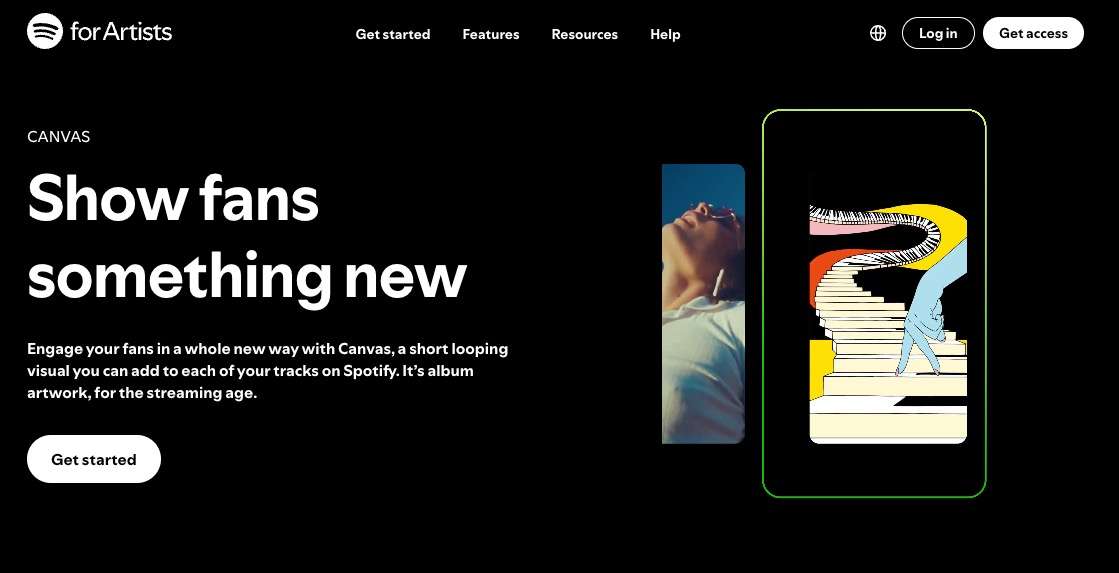
Canvas is an artist-uploaded video loop, 3 to 8 seconds long, that plays on repeat behind the playback controls when someone streams your track on a phone. It replaces the square cover art with full-screen vertical motion — and it travels with the track when listeners share it to Stories.
Why bother? It is the cheapest visual upgrade a release can get: free to upload, visible on every mobile play. Spotify's own metrics guide reports that strong Canvases lift streams by up to 120% and saves by up to 114% — "up to" is Spotify's ceiling from its own data, not a promise, but even a fraction of that makes eight seconds of motion worth the effort.
| Spec | Requirement |
|---|---|
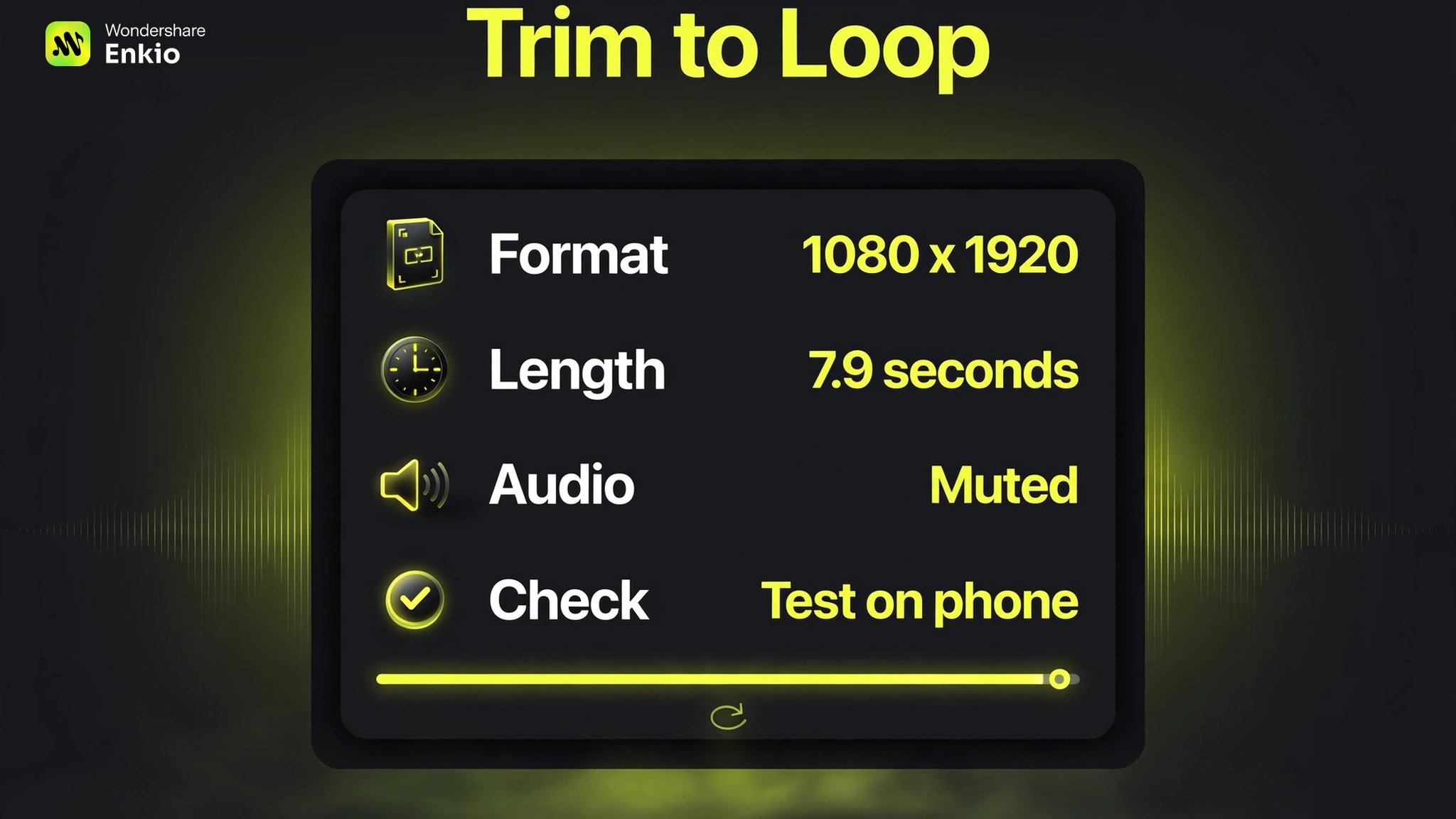
| Duration | 3 to 8 seconds (cut to ~7.9s — artists report files at exactly 8.000s sometimes fail; a community report, not an official rule) |
| Shape | Vertical 9:16 |
| Resolution | 720 to 1080 pixels tall (export 1080 x 1920; the smaller size looks soft on current phones) |
| Format | MP4 for a loop (JPG allowed for a still image) |
| Audio | Silent — strip the audio track; listeners hear the song itself |
| Upload path | Spotify for Artists → Music tab → select track → Add Canvas |
| Cost | Free for every artist with a Spotify for Artists account |
Spotify also enforces content rules on every upload: no singing, talking, or rapping on screen (the loop is not synced to your audio, so a moving mouth looks broken), no rapid cuts or flashing graphics, keep the important action centered, and text is allowed only if it refers to that specific track — no URLs or cross-promotion. Upload before release day so the loop is live from the first stream; Spotify reviews each Canvas against these rules before it goes live.
How to Make a Spotify Canvas
Four steps, no special software beyond a basic editor that exports 9:16 MP4.
Step 1: Gather the inputs
You need a finished track you own or have the rights to use, your cover art or one strong still image, and Spotify for Artists access with an Admin or Editor role (only the first main artist on the track, or team members with those roles, can add a Canvas).
Step 2: Build one 9:16 clip
The free route is a template visualizer: tools like VEED, Kapwing, Renderforest, or Specterr let you upload a track, pick a waveform or particle preset, and export a video. The consistent catch on free tiers is watermarks and capped resolution — check the current free plan before you start, because these limits change often. (Open-source browser tools like WaveForge export with no watermark, but they output WebM, so you still convert to MP4 before upload.)
Step 3: Trim it to a clean 3–8 second loop
Cut the strongest moment — a light change, a slow push-in on the artwork — keeping it slightly under 8 seconds, and strip the audio. Then play it three times on a phone: if the seam jumps, shift the cut to a stiller frame or use a rebound-style trim (forward, then backward), which hides almost any seam.
Step 4: Upload in Spotify for Artists
Log in at artists.spotify.com (or the app), open the Music tab, select the track, click Add Canvas, upload your MP4, preview it, confirm you have the rights to the video, and save. Check it in the Spotify mobile app — Canvas only appears in the mobile Now Playing view, not on desktop.
A Better Alternative: Generate the Canvas Instead of Templating It
The free template route works, but it has a ceiling that matters for a release asset. A waveform preset must be cut to 3–8 seconds, and bars that start and end at different heights visibly jump when Spotify repeats them. Worse, a generic preset has nothing to do with your artwork — and Spotify's guidelines warn against clips that read as ads.
The better alternative is to generate the clip from your own release materials instead of stamping a preset on your audio. That is the workflow Enkio AI Music Video Generator is built for you.
Generate AI MV NOW
Upload the finished song and the cover image you own or have the rights to use, add an optional prompt describing the scene and motion.
If the track itself is not finished yet, Enkio also generates vocal music from a prompt or your own lyrics, so the song and the loop can start from the same brief — an AI Music Generator creates the vocal track first, and the clip follows.
The honest summary: use a free template when you need a promo clip tonight and a watermark is acceptable for a draft. Use the AI route when the Canvas has to carry the release — one render gives you the loop, and the same 9:16 clip feeds your teaser and short-form cutdowns.
Frequently asked questions
Does Spotify have a built-in music visualizer?
No. Spotify does not offer a listener-controlled, real-time audio visualizer. Canvas is the closest native feature, but it is an artist-uploaded 3–8 second loop, not a visualizer generated live from the audio.
Can you add a Spotify Canvas before release day?
Yes. You can add a Canvas to any track, including upcoming releases, as long as you have the right role in Spotify for Artists. Adding it early means the loop is live from the first stream.
Can a Spotify Canvas have sound?
No. The file plays silent; listeners hear the track's audio. Cut the loop for how it looks on repeat, not for its own audio.
Is Spotify Canvas free?
Yes. Canvas is open to every artist with a Spotify for Artists account and uploading costs nothing. No paid tier is required.
Do I need a finished song to make a Canvas?
The track must exist in Spotify for Artists before you can attach a Canvas to it. If the song is not written yet, start with a music AI first — the How to Use Suno AI Music Generator guide walks through one tool's workflow, and our Best AI Music Generators list compares the vocal-song tools.
Conclusion
A Spotify Canvas is eight seconds of vertical motion, free to upload, and visible every time someone plays your track on a phone. The specs are simple — 9:16, 3–8 seconds, silent MP4 — and the upload takes minutes in Spotify for Artists.
The only real decision is what the loop looks like. A free template visualizer gets you moving bars tonight; a clip generated from your own song and cover art gets you a Canvas that looks like the release. If the visual is part of the release strategy rather than an afterthought, start where the song and the clip come from one brief.