



TL;DR
- The loop: write a prompt, pick 32 seconds or 2:10, generate two versions, then extend and repair the keeper with Extend, Remix, or inpainting — learnable in an afternoon.
- Read this first: audio, video, and stem downloads are still disabled as of October 2026 (verified on Udio's help center) — you currently cannot take a file out of the platform.
- Free tier: 10 credits a day plus 100 a month, capped at 3 full-length songs per day — enough to learn the workflow, not to produce at volume.
- Credit discipline: each generation returns two versions and spends credits whether you keep them or not; budget 8–20 credits per finished song, not the 1–2 the price list implies.
How we wrote this: This guide is based on Udio's official help center and pricing page (re-verified October 2026), alongside independent tutorials and community reports from r/udiomusic. We did not receive compensation from Udio. Credit allowances, plan prices, and the export situation change often — treat every figure below as the October 2026 snapshot and check Udio's own pages before spending. Sections covering Enkio's own workflow are based on our team's direct product knowledge.
Export status (October 2026, verified): downloads of audio, video, and stems remain disabled on Udio following the late-2025 licensing transition, with no announced restoration date. Everything in this guide assumes you work inside the platform. If your account shows an export option, use it the same day.
What You Need Before You Start
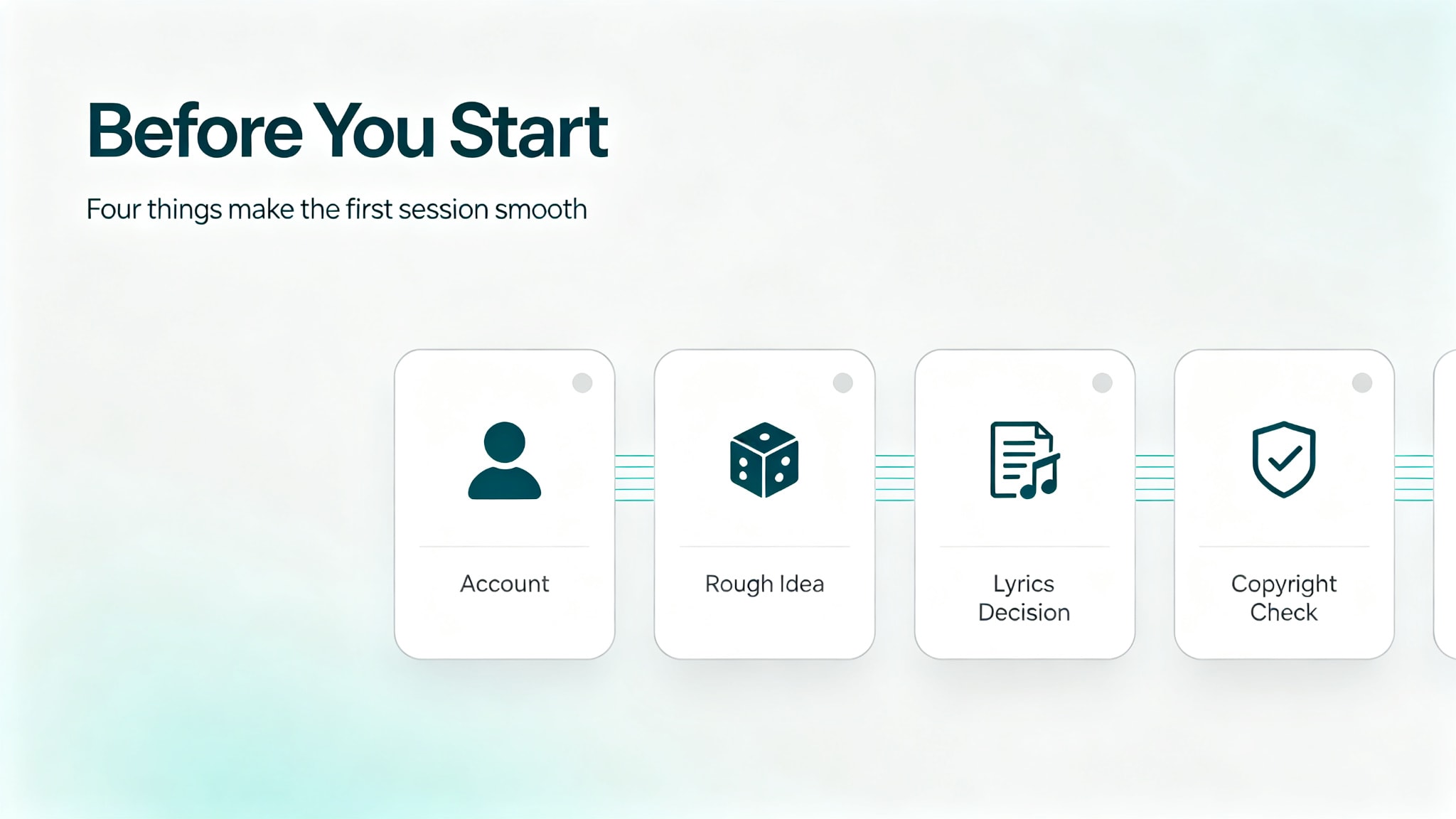
We reviewed the help center before writing this, and four things make the first session go smoothly.
- The first is an account at udio.com. Signing in takes a minute, and the free tier is enough to learn the workflow: 10 credits a day plus 100 a month (verified October 2026), capped at 3 full-length songs per day. Paid plans are Standard ($10/month, or $8/month billed annually) and Pro ($30/month, or $24/month billed annually). Check Udio's current plans for the exact allowance, since it has changed before.
- The second is a rough idea rather than a complete one. Udio asks for style, mood, or theme, and its own examples stay deliberately short. If nothing comes to mind, the dice icon on the home page drops a random idea into the box for you to edit.
- The third is a decision about lyrics. Udio offers three lyric modes, and choosing before you generate saves regenerations. If you plan to write your own verses, have the text ready to paste.
- The fourth is a copyright check on anything you upload. Udio's audio upload feature lets you start from an existing file, and the rule is the same one that applies everywhere in music production: work with audio you wrote or have the rights to use. Starting from a commercial track you do not control is not a shortcut.
If you want the background on what the tool is and where its strengths sit before working through the steps, our Udio AI music generator guide and review covers that ground.
How to Generate Your First Song
The first generation follows the same three moves every time, whether you are testing an idea or starting a release.
Step 1: Describe the song in the prompt box
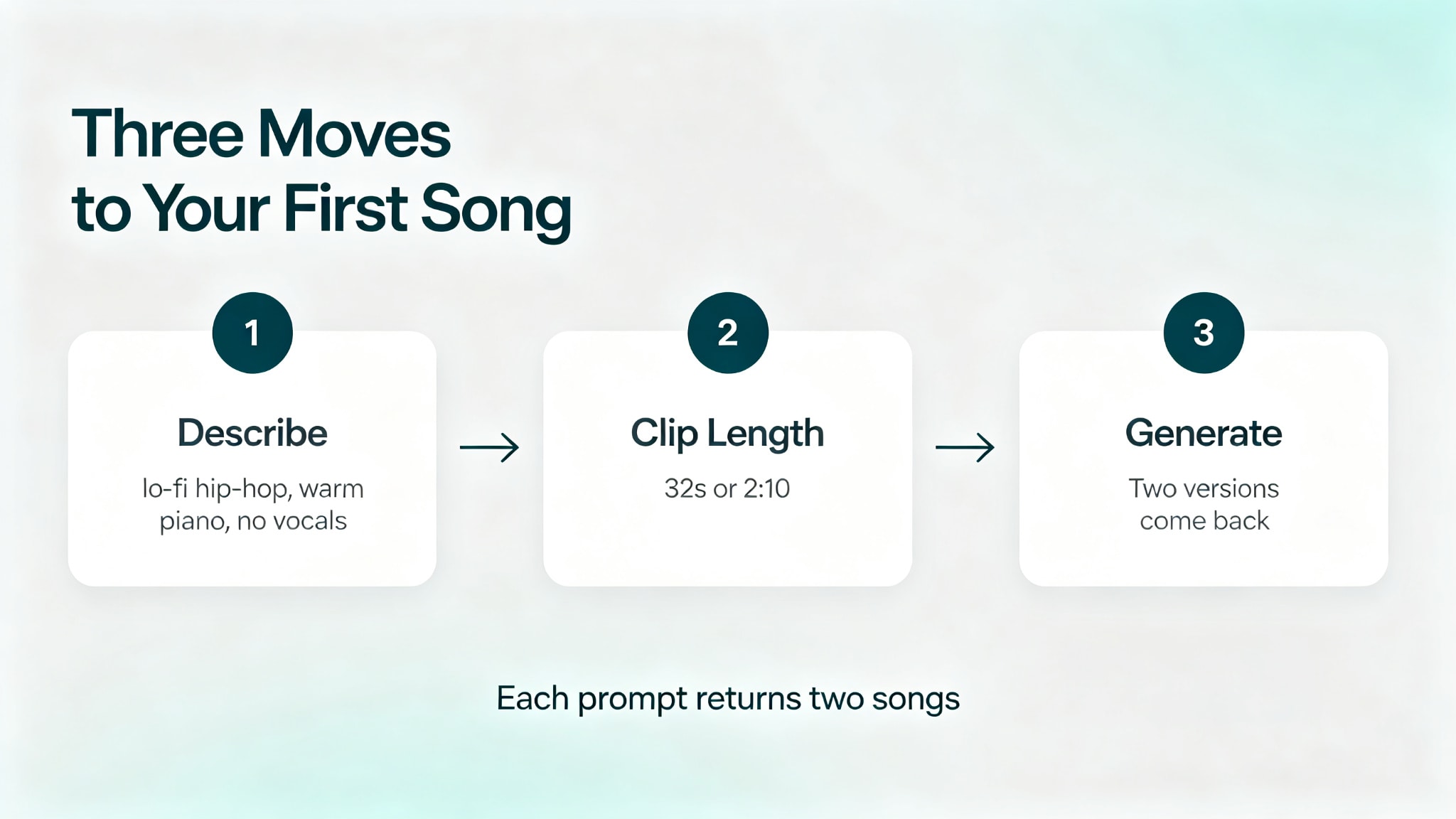
Type a short description of what you want to hear. We read Udio's documentation, which recommends keeping the first attempt simple: lead with style and mood rather than production notes, since "lo-fi hip-hop with warm piano, no vocals, study vibe" is more usable direction than a long narrative. If the result is close but not right, change one element rather than rewriting the prompt, because that is how you learn what each word does.
Step 2: Set the clip length
Pick a clip length before you generate, because Udio does not offer a duration slider. We found two options: 32 seconds by default, and 2 minutes 10 seconds. For a first real attempt, choose the longer one: it gives you a verse and a chorus to judge, and it tells you whether the vocal tone is in the right territory before you invest credits in extensions.
Step 3: Generate, then pick a version to keep
Press Create and wait for the result. Each prompt returns two songs rather than one, which is the detail that surprises most new users when they check their credit balance. Your prompt stays in the box after generation, so the fastest way to improve the output is to edit the description and run it again.
Listen for two things: whether the chorus arrives where you expect, and whether the vocal delivers the mood you asked for. If either is wrong, regenerate before investing in the rest.
How to Extend a Short Idea Into a Full Song
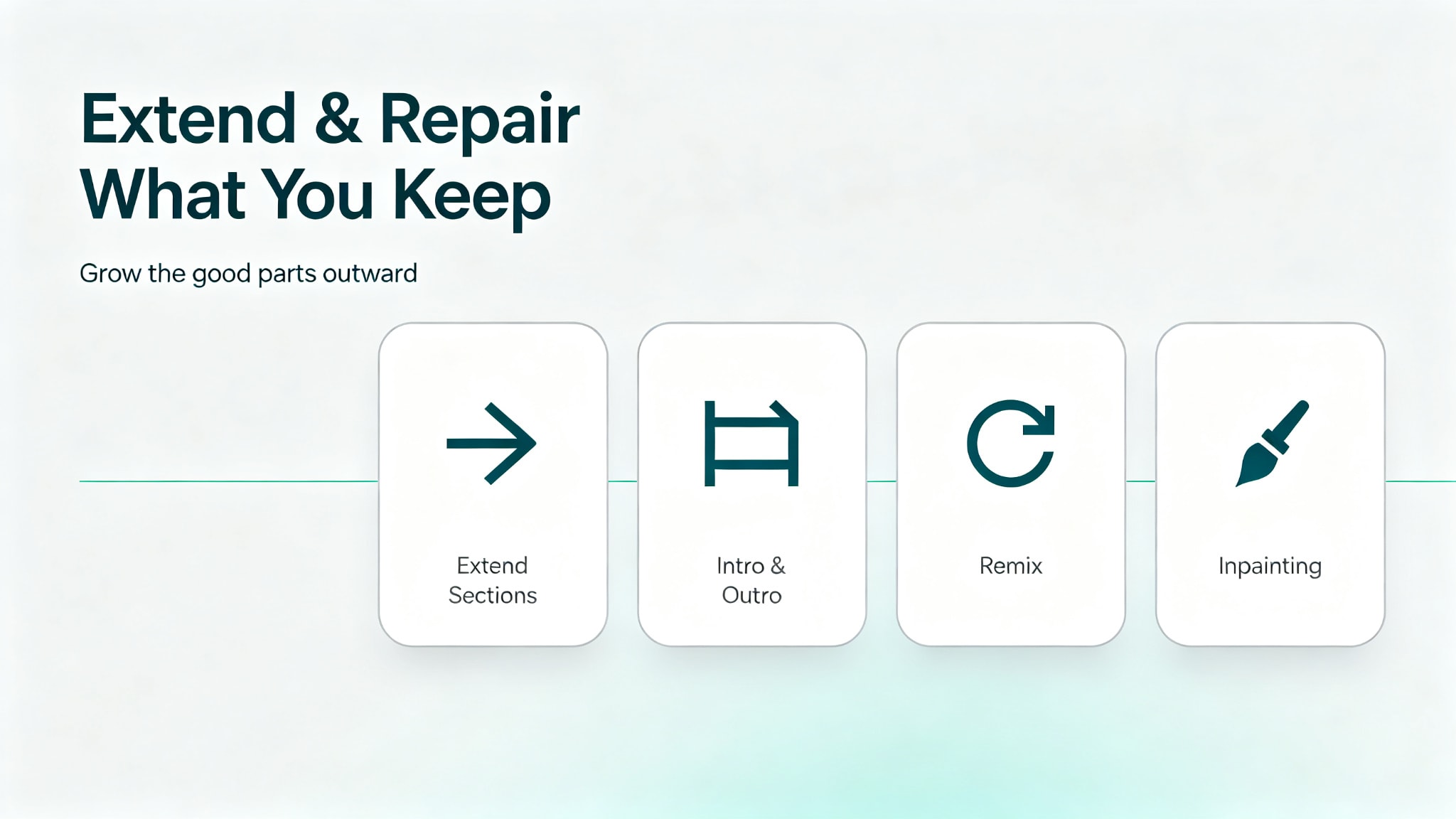
Udio generates fixed lengths, so building a complete track means extending the good parts rather than asking for a longer file up front. Reviewers who use the platform regularly describe the process as clip-first: get one section right, then grow it outward.
Add sections at the end
Use Extend to continue the song from its last section, which is how a 32-second idea becomes a structured track. Extensions run in small documented increments rather than one long jump, so each pass is a chance to listen and stop if the arrangement drifts. Expect the credit cost to scale with each extension, which is why starting with a longer clip is cheaper than extending a short one several times.
Build an intro and an outro
Udio's documentation treats intro and outro generation as part of the same extension workflow. This matters more than it sounds: a track assembled from extensions tends to start and stop abruptly, and an intro and outro are what make it sound intentional. Do these last.
Keep the takes that work, discard the rest
The discipline that separates people who spend a few credits per usable song from people who spend many times that amount is the willingness to discard. Each generation returns two versions, and neither is usually keepable on the first pass. Save the prompts and settings behind anything you intend to keep, in a note outside Udio, so a version you like is reproducible later.
How to Fix and Rework a Track You Almost Like
Once a track exists, three tools let you repair it without starting over. This is where Udio's reputation for control comes from. Note that inpainting is documented as a paid-plan feature in the sources we checked — confirm on Udio's current plans page if you are on the free tier.
Switch the lyric mode
Udio supports automatic lyrics, your own lyrics pasted in, and instrumental output. Moving a track to instrumental removes the vocal entirely, which is the fix when the arrangement is right and the performance is not. Working from your own lyrics gives you control over the words and their structure rather than the mood alone, and it is the mode to use for anything with a specific message.
Use remix for a different direction
Remix takes an existing track and pushes it toward a new style while keeping the underlying musical identity. Use it when the song is fundamentally right but the genre framing is wrong, and save the original before you rework it, since remix produces a new version rather than editing the old one in place.
Repair a single section with inpainting
Inpainting regenerates one problematic part of a track — a chorus that drags, a transition that stumbles — while leaving the rest untouched. It is the tool that makes extended sessions worthwhile, because it means one bad eight seconds no longer costs you the whole song.
Getting Your Music Out of Udio
This is the step most guides still describe incorrectly, so it is worth being precise — we compared the current help-center guidance with the older tutorials still circulating, and the two disagree.
As of October 2026 (re-verified on help.udio.com), downloads of audio, video, and stems remain disabled. The restriction arrived with the licensing transition that followed the Universal Music Group settlement in October 2025: exports were switched off, briefly restored for roughly 48 hours so users could rescue existing work, and then disabled again while the co-licensed platform is built. No restoration date has been announced.
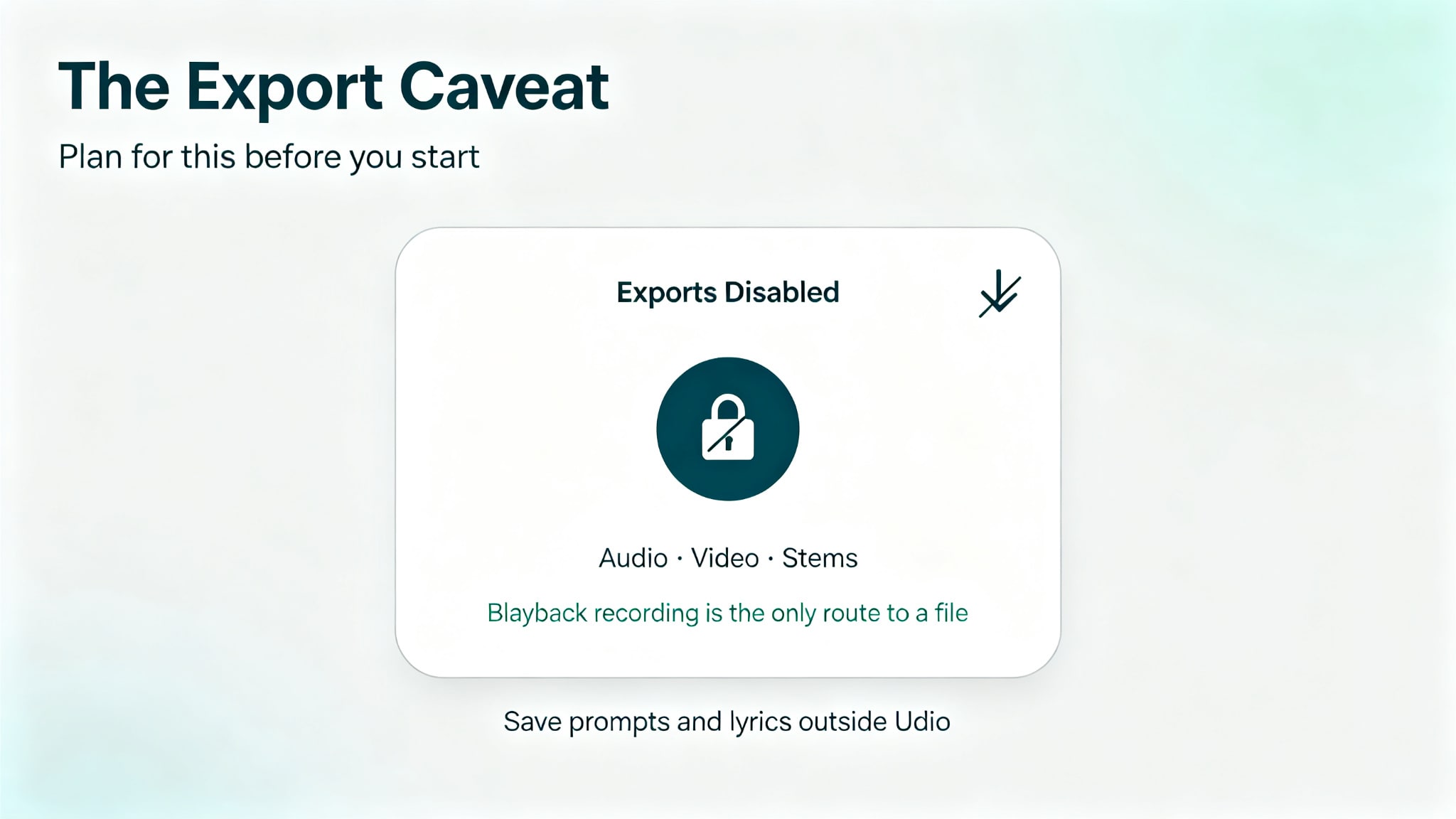
What that means in practice is that the standard advice — generate, download the WAV, drop it into your editor — does not currently work. The lock sits on Udio's servers, so extensions, scripts, and paid services cannot get past it, and any site offering a one-click Udio download is selling you an ad page at best. A playback recording remains the only route to a file, and it gives you a stereo bounce of the mix rather than stems, with a quality cost against a real export. If your account happens to show an export option, use it the same day.
The practical response is to treat Udio as a platform you work in for now. Save your prompts and lyrics outside it, keep notes on the settings behind each keeper, and check Udio's help center for the current export status before you plan anything that depends on having a file. Our Udio AI music generator review looks at what that limitation means for different kinds of projects, and whether the trade is worth it.
Compare what a plan includes.
Enkio plans cover AI music video generation, templates, and watermark-free downloads depending on your plan.
Make more from your MV.
Let Enkio create a complete AI music video from your song with cinematic templates.
Frequently asked questions
These are the questions we see most often when people try to use the Udio AI music generator for the first time.
How many credits does a Udio song use?
Fewer than the credit list suggests and more than a single generation implies. A 32-second clip costs one credit, a two-minute generation costs about two credits per version, and each action returns two songs.
Because you rarely keep a first take, published analyses put the realistic cost per finished song at somewhere between 8 and 20 credits. Credits, allowances, and prices sit with Udio and have changed before, so confirm the current figures on Udio's own site.
Can you write your own lyrics in Udio?
Yes. Udio supports automatic lyrics, lyrics you write and paste in, and an instrumental mode with no vocals at all. You can also generate lyrics in more than one language through the automatic mode. If the words matter to the project, write them before you generate rather than editing an automatic result afterwards, because the phrasing shapes the vocal melody.
Can you download a song from Udio?
Not as of October 2026. Downloads of audio, video, and stems remain disabled during Udio's licensing transition, with no announced restoration date, and the change applied to tracks made before it as well. Recording playback is the only method that still produces a file, and it captures the mix rather than stems. Check Udio's help center for the current status.
What clip lengths does Udio support?
Two, at the time of writing: 32 seconds as the default, and 2 minutes 10 seconds as the longer option. There is no duration slider, so a full-length song is built by extending a good section in increments rather than by requesting a longer file up front.
Do you need music experience to use Udio?
No. The workflow is description-based, and the help center's own examples are short phrases rather than technical directions. What experience helps with is knowing when to stop: recognizing that a chorus will not improve with another regeneration is a judgement skill, and it is the one that keeps credit spending under control.
Can I use Udio songs commercially?
Udio's current terms limit use to personal, non-commercial purposes, and commercial use on the free tier additionally requires attribution. Note the practical catch: with downloads disabled, there is currently no way to take a file out of the platform at all, so the commercial question is moot until exports return. Check Udio's terms page for the current wording before planning anything commercial.
Conclusion
Using Udio comes down to four moves and one caveat: describe the song, choose a clip length, generate two versions, then extend and repair the one you keep — and plan for the fact that you cannot currently take the audio out of the platform. Learned in that order, the workflow is quick, and the free tier is enough to find out whether the tool suits how you work.
If you are happy to keep projects inside Udio while the licensed platform is built, the approach above is the fastest route to a usable track. If you need frame-level control over an arrangement, or a file in a DAW today, a traditional editor or a tool that exports will serve you better, and it is worth checking before you spend a month of credits.
Reference of this content:
- Udio official help center and pricing page (udio.com, re-verified October 2026)
- Udio terms of use (personal, non-commercial scope)
- r/udiomusic community reports on the October 2025 licensing transition and download freeze