



You can now generate AI music videos without leaving the Codex desktop app. Enkio is available as a Codex plugin powered by MCP (Model Context Protocol): download the installer, open Codex, find Enkio under Plugins, click Try Now, and create a video from a prompt plus your own song and reference images.
What it is: the Enkio plugin brings music-video, video, and image creation tools into Codex.
How to install it: download the installer from the link below. You may also give the link to an AI assistant and ask the assistant to install it.
Make your first AI music video.
Attach a song and reference images in Codex, then let the Enkio plugin run the MV workflow.
What you need: the Codex desktop app, an Enkio account, and enough Enkio credits. Music-video generation also requires both reference audio and at least one reference image.
How credits work: plugin generations draw from the same Enkio credit balance used by the web app.
What Is Enkio MCP in Codex?
MCP stands for Model Context Protocol, a standard that lets AI assistants connect to external tools. In Codex, the Enkio plugin appears under Plugins with one MCP server listed on its page. Once connected, the agent can use Enkio's visual creation tools within the conversation.
Enkio's MCP integration is launching in Codex first. Here, "Codex" means the Codex mode inside the unified desktop app that includes Chat, Work, and Codex.
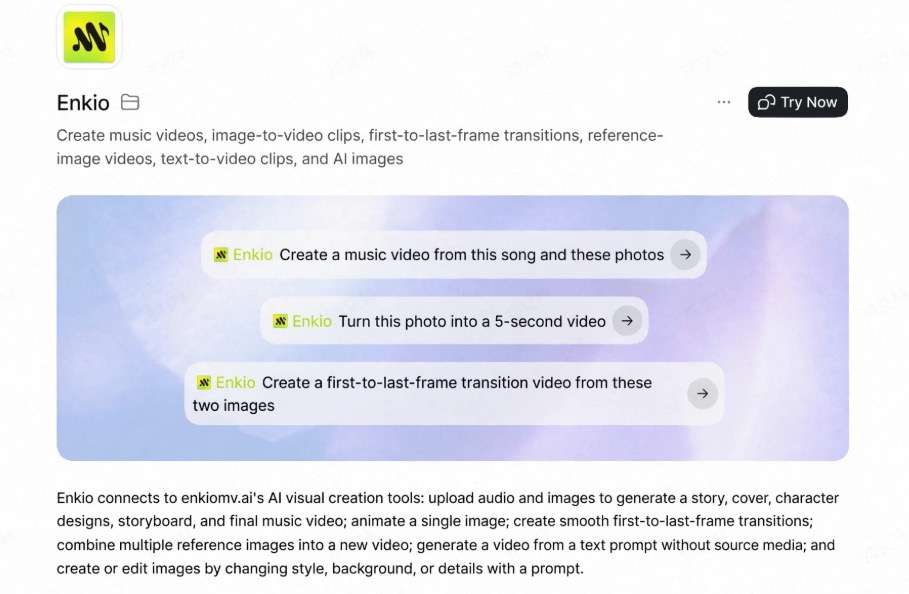
The Enkio plugin page lists six creation workflows:
- Music videos: use audio and images to generate a story, cover, character designs, storyboard, and final music video.
- Image-to-video clips: animate a single image.
- First-to-last-frame transitions: create a transition between two images.
- Reference-image videos: combine multiple reference images into a new video.
- Text-to-video clips: generate a video from a text prompt without source media.
- AI images: create or edit images by changing the style, background, or details with a prompt.
The plugin brings the core AI Music Video Generator workflow into Codex. The agent reads Enkio's MV instructions, checks the source files and account status, then carries out the generation steps for you.
How to Use Enkio MCP: Step-by-Step Guide
Step 1: Download the Installer
Paste the installer link (Download the Enkio installer) into a conversation with Codex and ask the assistant to install it for you.
Step 2: Open Codex → Plugins → Enkio → Try Now
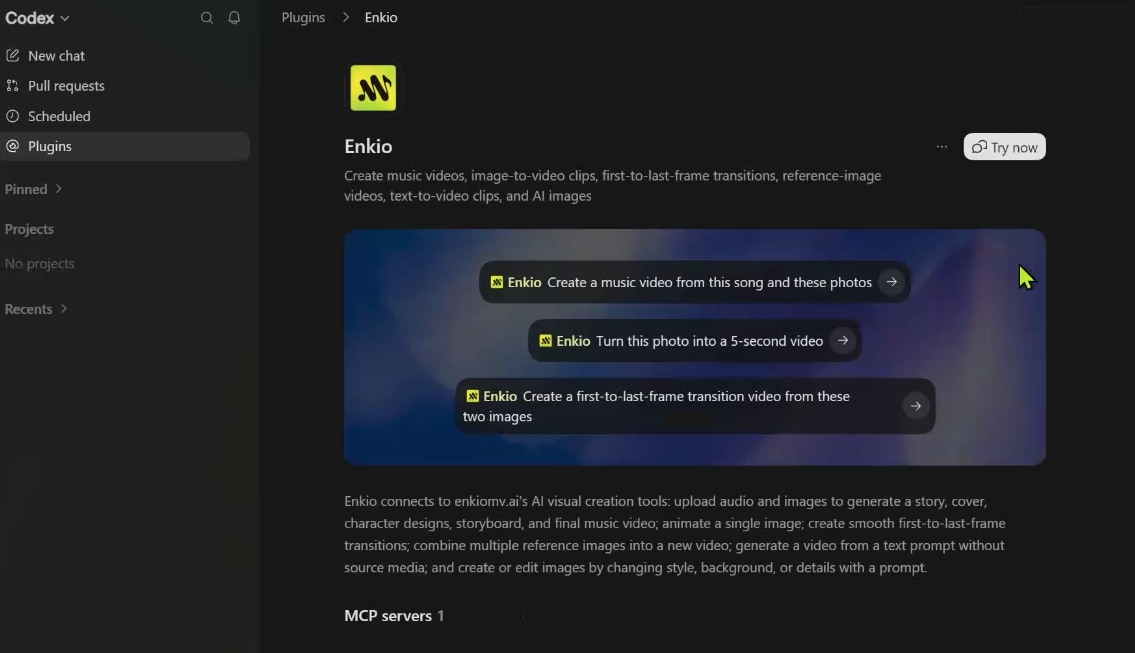
After installation, open Codex and select Plugins in the left sidebar. Find Enkio, open its plugin page, and click Try Now in the top-right corner. Codex opens a new conversation with the Enkio plugin active.
The page describes Enkio's supported workflows and shows three starter prompts: create a music video from a song and photos, turn one photo into a five-second video, or create a transition between two images.
Step 3: Write a Prompt and Attach Your Song and Images
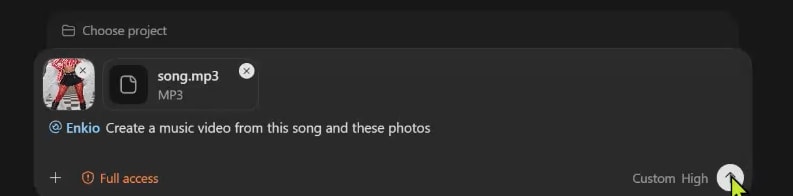
The composer shows the Enkio plugin as active. Write a prompt that states the task you want the agent to perform. A simple starting point is:
Create a music video from this song and these photos.
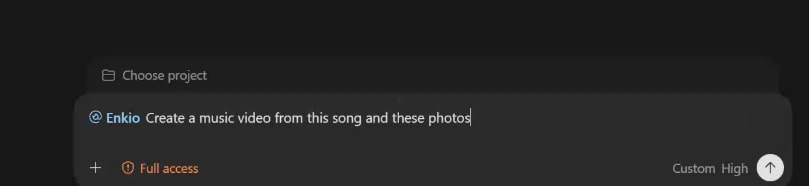
For music-video generation, attach both required inputs before sending:
Reference audio: your song file.
Reference images: one or more images that guide the characters, setting, or visual direction.
Add visual direction to the same prompt when needed. For example: "Create a 9:16 cinematic music video from this song and these images, with a dreamy night atmosphere, neon reflections, and slow camera movement."
Step 4: Let the Agent Run the Workflow
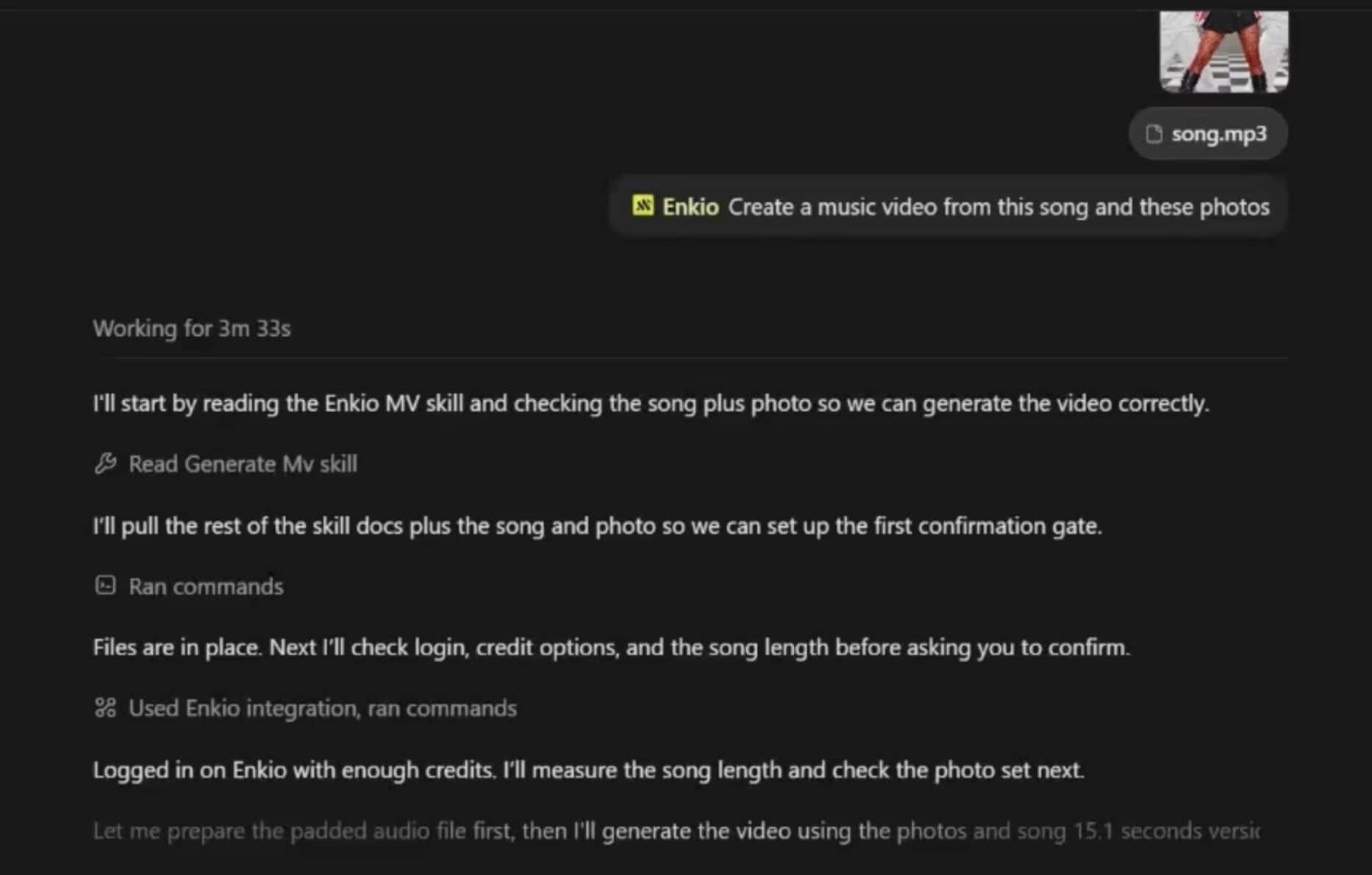
After you send the prompt, the agent executes the process automatically. In the supplied example, it:
- Reads the Enkio MV skill so it follows the generation workflow.
- Checks the attached song and images and prepares the files.
- Verifies the Enkio login and credit balance.
- Measures the song length and prepares the generation job.
- Generates the music video.
The example run displayed its progress in the chat, including the skill read, file preparation, login and credit check, and song-length measurement. Generation time varies with the request and source material.
Step 5: Keep the Locally Saved Video
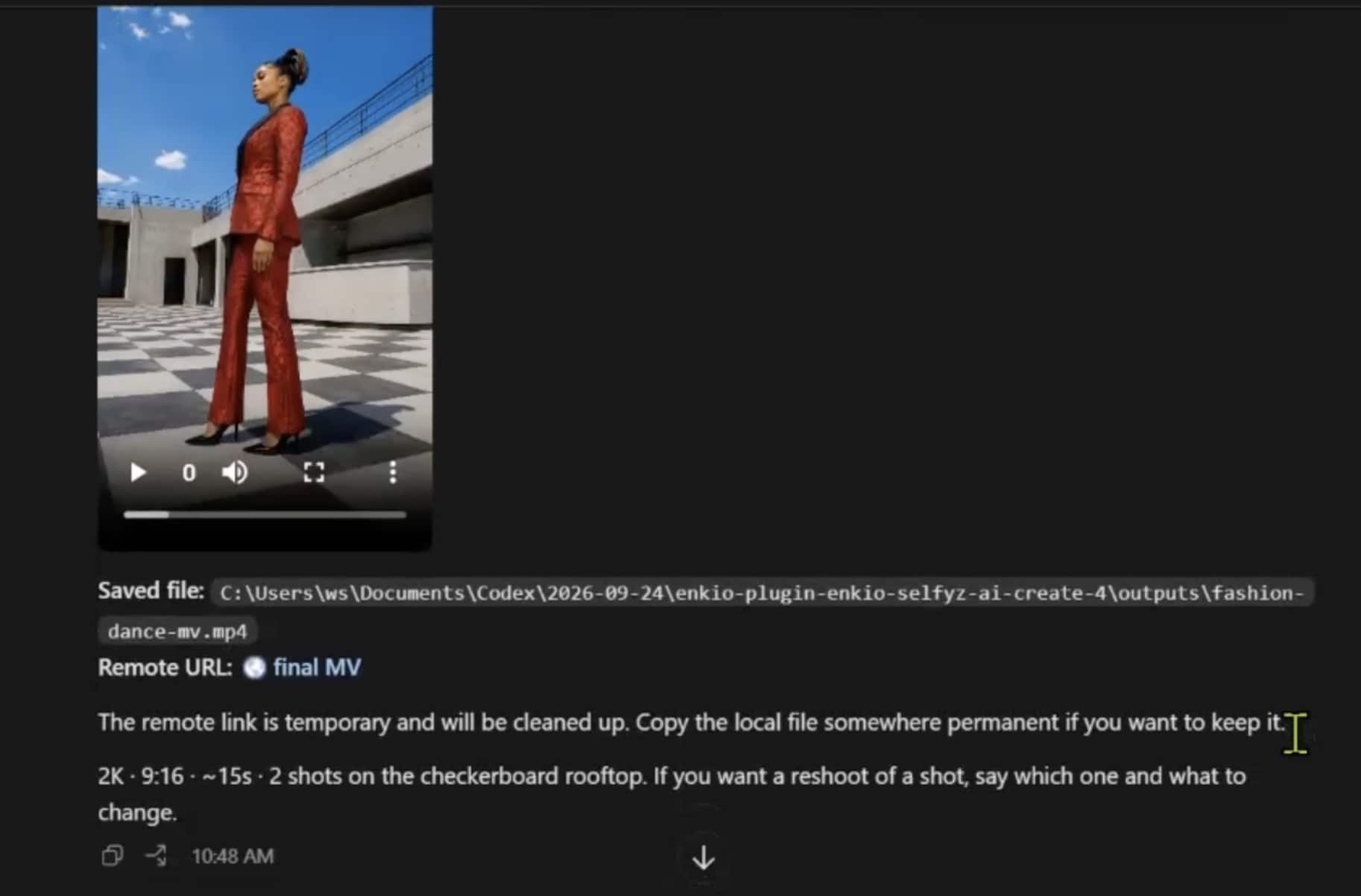
When generation finishes, Codex displays the result and reports where the video was saved on your computer. Keep this local file as the permanent copy of the MV.
The result may also include a remote URL for quick access. The supplied example states that this remote link is temporary and will be cleaned up, so do not use it as permanent storage. Save or move the local file to the folder where you keep finished projects.
The same conversation can also be used to request a reshoot. State which shot you want changed and describe the adjustment.
Make your first AI music video.
Attach a song and reference images in Codex, then let the Enkio plugin run the MV workflow.
Troubleshooting Enkio MCP Connection Issues
The Enkio plugin is not in the Plugins list
Run the installer from Step 1, restart the desktop app, and check Plugins again.
The agent says you are not logged in
Sign in to your Enkio account, then return to Codex and retry the request.
The agent reports insufficient credits
Plugin generations use the same credit balance as the Enkio web app. Check your account balance and current plan before trying again.
The MV request cannot start
Confirm that you attached both required materials: reference audio and at least one reference image. Input-requirement failures like this are common across MV tools.
Check what your plan includes.
Plugin generations use the same credits as the Enkio web app. Review the current plans before generating.
Frequently asked questions
Do I need an Enkio account to use the plugin?
Yes. An Enkio account is required, and the workflow verifies your login before generation starts.
Do plugin generations use a separate credit balance?
No. Generations through the Codex plugin consume the same credits as the Enkio web app.
What files do I need to make a music video?
You need a reference audio file and reference images. Both are required materials for an MV. Other plugin workflows have different input requirements; for example, text-to-video starts from a prompt, while image-to-video requires an image.
Where is my finished video saved?
The finished MV is saved locally on your computer, and Codex shows the file path in the conversation. If a temporary remote URL is also provided, keep the local file because the remote link will be cleaned up.
Can I request changes after the video is generated?
Yes. Continue in the same conversation, identify the shot you want changed, and describe the reshoot.
Which Enkio platforms are available?
Enkio offers a web app and mobile apps for iOS and Android. MCP support is now available, with Codex supported first.
Conclusion
Using Enkio MCP in Codex takes five steps: download the installer, open Plugins → Enkio, click Try Now, attach a prompt plus the required song and reference images, and let the agent execute the workflow. When the run finishes, keep the locally saved MV as your permanent copy.
The Codex plugin uses your Enkio account and the same credits as the web app. Enkio is also available through its web app and mobile apps for iOS and Android, while MCP adds a chat-driven way to create inside Codex. For the full picture of what Enkio can do beyond the plugin, see our Enkio Review.