



Turn a photo and song into an AI dance video.
Use Enkio to build a music-led video from an image, a track, and optional visual direction.
We reviewed nine current pages ranking for AI baby dance searches on November 13, 2026. Most repeat the same three-step formula: upload one photo, choose a dance template or reference motion, then generate a short clip. This guide adds the missing decisions—how to choose the input, when music-led generation makes more sense, and what to check before uploading a child's image. Here is a baby dance video I made with the workflow in this guide:
What You Need Before You Start
Prepare the photo, soundtrack, intended format, and usage permissions before opening a generator. Fixing those choices first prevents most avoidable retries.
- One authorized photo: Use an image you own or are permitted to upload. For a child's photo, remove visible names, school logos, addresses, or other identifying details, and review the service's current privacy policy.
- A song or audio bed: Choose music you created, licensed, or otherwise have permission to use. A clear beat makes the intended movement easier to describe.
- A target format: Choose 9:16 for most vertical short-form posts, 1:1 for square feeds, or 16:9 for landscape playback.
- A simple creative brief: Write one sentence covering the movement, setting, mood, camera, and framing. Avoid stacking several unrelated dance styles.
Do not treat a free preview as proof that every export is free. Trial credits, watermarks, resolution, storage, and download rights can differ by plan.
Choose a Photo That Animates Well
A clean, front-facing image with visible limbs gives a motion workflow more usable information than a tight face crop. The goal is not a perfect portrait; it is an uncluttered body shape the tool can interpret.
Choose a photo with even lighting, a simple background, and no objects covering the arms or legs. If the source is seated, side-facing, blurred, or cropped at the waist, expect more motion errors or choose a smaller upper-body movement instead of a full dance.
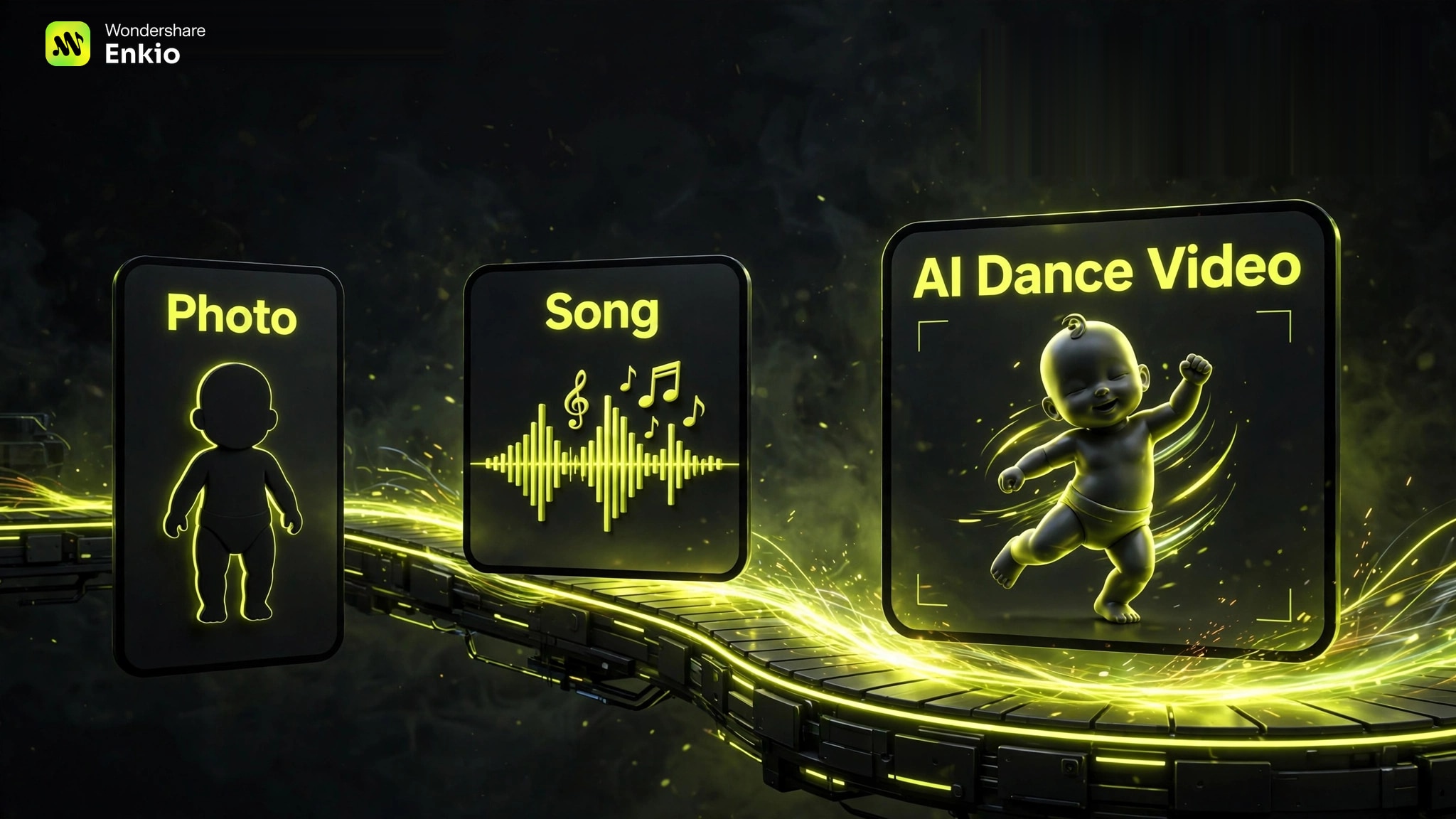
Use one subject for the first attempt. A two-person image introduces another layer of identity and limb separation, so save duet layouts for a second test after the single-subject workflow is stable.
| Photo type | Best motion scope | Main risk | Better decision |
|---|---|---|---|
| Front-facing full body | Full dance | Small facial details may drift | Keep the background simple |
| Waist-up portrait | Upper-body groove | Legs must be invented | Use limited steps and a steady camera |
| Seated or side-facing image | Subtle movement | Body geometry may distort | Reframe or choose a gentler action |
| Two people | Duet interaction | Limbs and identities may overlap | Test each person separately first |
This table is a planning guide; results still vary by source photo, motion range, and generation settings. We found that the strongest ranking pages consistently ask for a clear, front-facing image before introducing dance choices.
Compare Three Baby Dance Workflows
Choose the workflow by what should lead the clip: a preset effect, a reference dance, or the song. We found that many current pages blur these options even though they require different inputs and produce different levels of control.
| Workflow | Required input | Best when | Main control | Main limitation |
|---|---|---|---|---|
| Template-first dance effect | Photo plus preset | You want a short trend clip | Template choice | Movement is largely predetermined |
| Reference-motion workflow | Photo plus dance video | You need a recognizable routine | Source movement | Strong motion can expose image defects |
| Enkio MV workflowMusic-led | Song, image, optional prompt | The soundtrack should organize the video | Music, mode, ratio, visual direction | Uses plan-dependent credits |
Template-first tools are the shortest route to a familiar effect. Reference-motion tools offer clearer choreography, while a song-led workflow is better when the deliverable should feel like a small music video rather than a copied dance loop.
For a broader look at beat-synchronized dance-video positioning, see our Freebeat AI Music Video Generator Review. If image-led animation and visual transformation are the main decision, the Kaiber AI Music Video Generator Review provides a different workflow reference.
How to Use Enkio for an AI Baby Dance Video
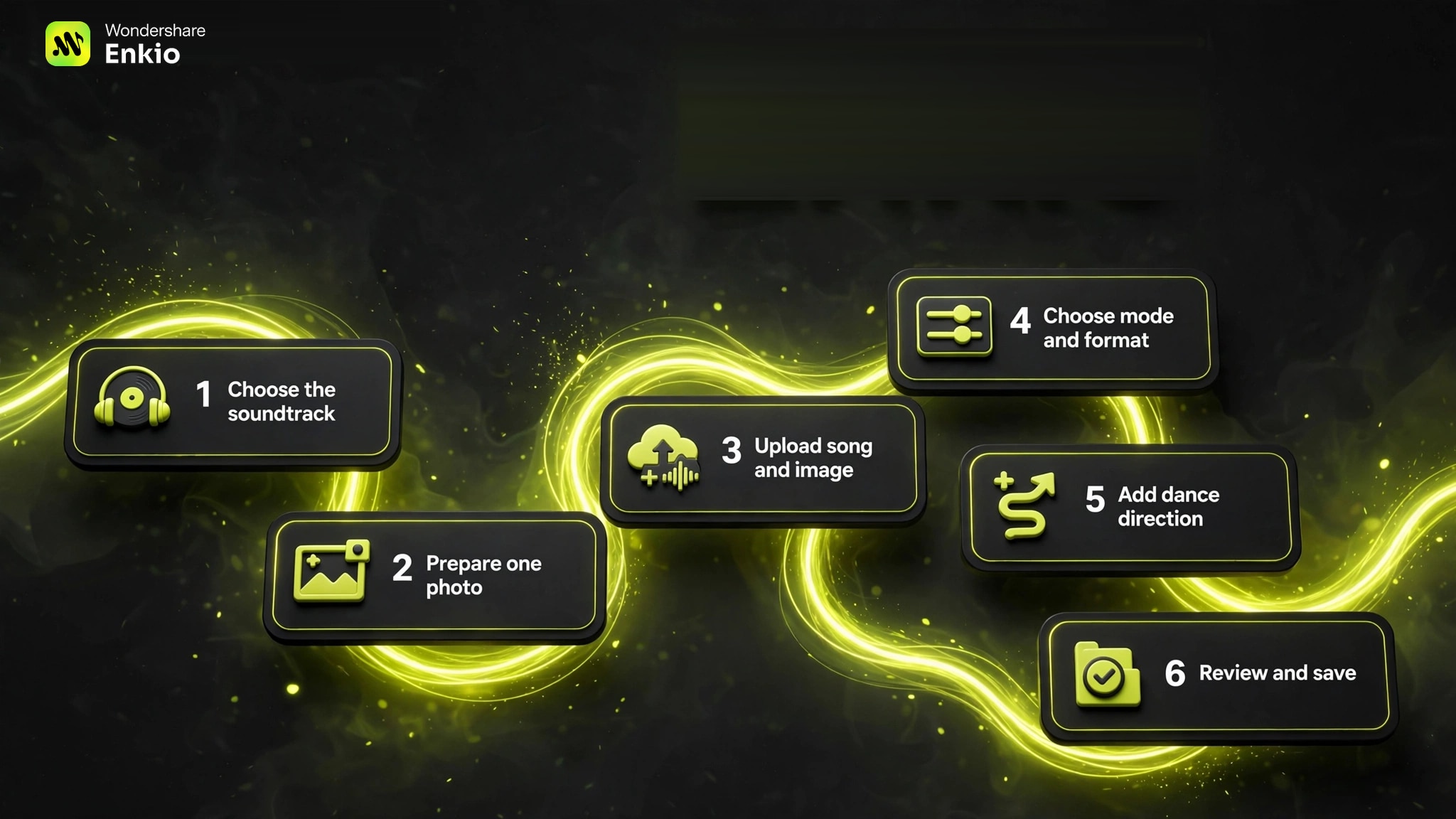
The documented workflow begins with a song and an image, then lets you add optional direction, choose a mode, review project materials, and save the finished video. It does not require a baby-specific template, so describe the movement and framing you actually want.
-
Use a song you may publish, or begin with the AI Music Generator. Pick a clear beat and decide which section should drive the dance.
Done whenThe audio file and intended section are ready.
-
Use an authorized image with an unobstructed face and visible body shape. Remove identifying background details before upload.
Done whenThe subject is clear and the image is safe to share with the service.
-
Open the AI Music Video Generator, add the soundtrack and reference photo, then crop the audio section and image framing when needed.
Done whenBoth required inputs appear correctly in the project.
-
Use Solo MV for one subject or Two-Person MV for a duet. Select 720p or 1080p and one of the available aspect ratios, such as 9:16 for a vertical post.
Done whenThe subject count, resolution, and frame match the destination.
-
Keep the optional prompt concrete: playful full-body dance, bright studio, clear leg movement, steady camera, vertical framing. Treat it as direction and expect variation between attempts.
Done whenThe brief names one movement style, one setting, and one camera approach.
-
Check the character views, visual materials, timecode, and individual shots before the final save. Request a bounded change to a weak shot instead of changing the entire brief at once.
Done whenThe saved video has been reviewed at full size and with sound.
The music step and the MV step are separate product capabilities. You can start with the AI Music Generator, then move the finished track and image into the AI Music Video Generator. Below is a baby dance video sample generated by Enkio:
In addtion to AI baby dance video, recently, our team also reviewed some solution about Best AI Gospel Music Generator and finished a research on Dream Relic artist, if you are interested, these post could be your reference.
Tips for More Natural Dance Motion
Natural-looking motion usually comes from reducing ambiguity, not adding more adjectives. In the nine pages we reviewed, clear framing and limited motion appeared more consistently than long creative prompts.
- Match motion to the crop. A waist-up image suits shoulder, hand, and head movement better than a full-body routine.
- Use one dance idea. Combining shuffle, ballet, spins, and jumps in one short prompt creates competing instructions.
- Keep the camera steady first. Establish the movement before adding rapid cuts, zooms, or orbiting shots.
- Check hands, feet, and the face at full size. Small preview windows can hide identity drift and limb errors.
- Change one variable per retry. Adjust the image, motion, or camera—not all three—so you can tell what improved the result.
If the final task is social editing with captions and manual timing, our CapCut AI Music Video Generator Review explains a timeline-led alternative. For a more specialized music-video system, the Neural Frames AI Music Video Generator Review covers a different balance of audio analysis and visual control.
When Enkio Fits This Use Case
This workflow fits when the soundtrack should lead the creative brief and the desired result is a music video with selectable modes, ratios, and shot review. A dedicated reference-motion tool is a better fit when copying one exact routine matters more than the song-to-video structure.
This guide is published by Enkio. We scored the verified workflow on music integration 25%, input clarity 20%, workflow control 20%, output flexibility 20%, and limitation transparency 15%.
Our verdict
A useful fit when the song should lead the dance video.
Enkio combines a track, an image, optional direction, selectable MV modes, multiple aspect ratios, and shot-level review in one music-video workflow.
Pros
- Music-led workflow
- Solo and duet modes
- Five aspect ratios
Use a song and an authorized image to start an AI music video.
Create an AI Music VideoOutput currently supports 720p and 1080p, generation uses credits, and download benefits vary by plan. Our full Enkio Review explains the broader product boundaries.
Check current credits and download benefits.
Review the current Enkio plans before submitting a music-video generation task.
Frequently asked questions
Is there a completely free AI baby dance app?
Some tools offer a free first video, welcome credits, or a preview, but that does not mean unlimited free exports. Check current credit, watermark, resolution, and download conditions before uploading a photo.
Does the baby have to be alone in the picture?
No, but one clearly separated subject is easier for a first attempt. If two people appear, choose a two-person workflow and use a photo where faces, arms, and legs do not overlap.
Can I use a pet or adult photo instead?
Often, yes, if the selected workflow accepts the image and the movement suits the subject. Use a general dance-video workflow rather than assuming a baby-focused preset will handle every body shape equally well.
Can I post an AI baby dance video on TikTok, Reels, or Shorts?
You can prepare a vertical export for those channels, but permission to use the source photo and music still matters. Platform policies on AI-generated content differ—check the platform's current guidelines.
How should I handle privacy and consent for a child's photo?
Use only a photo you are authorized to upload, remove visible personal details, and read the service's current privacy and retention terms. Do not treat a playful effect as a reason to publish a child's identifiable image without appropriate consent.
Conclusion
An AI baby dance video works best when the photo, music, and motion scope agree. Start with one clear subject, choose whether a template, reference routine, or song should lead the result, and test a short version before spending more credits.
If the soundtrack is finished and the next deliverable is a music-led dance video, Enkio can carry the song and image into an MV workflow while leaving the final privacy, rights, and publishing decisions with you.